
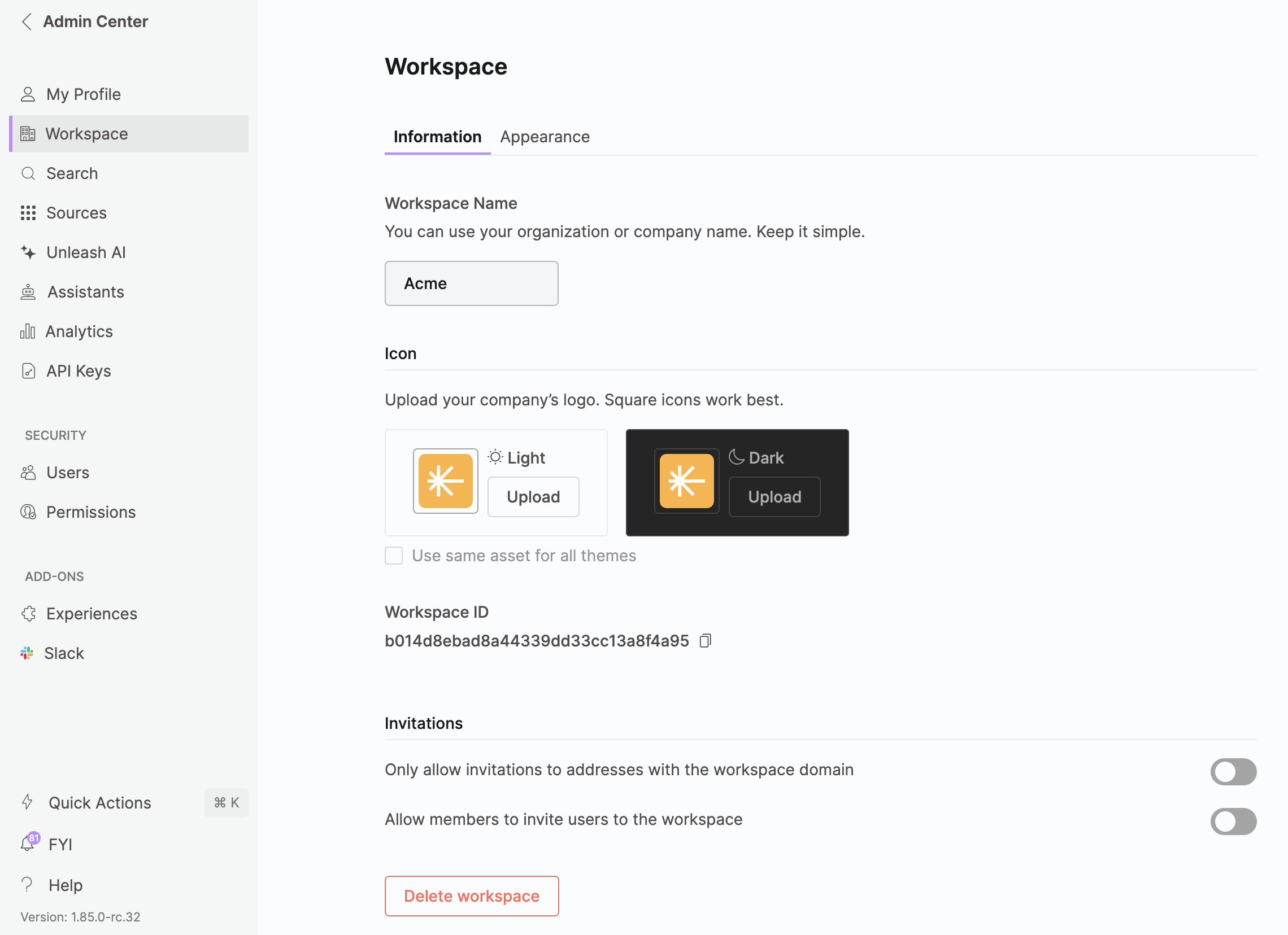
Customize and manage key details about your workspace, including the name, icon, and access to your Workspace ID.
Workspace Name
Set your workspace name—typically your organization or company name.
Workspace Icon
Upload your company’s logo to personalize your workspace. For best results, use a square image.
Max file size is 5MB.
Workspace ID
Easily access and copy your unique Workspace ID for reference or integrations.
Invitations
Restrict Invitations: Limit invitations to email addresses that match your workspace domain.
User Invitations: Toggle on to allow existing users to invite others to join the workspace.
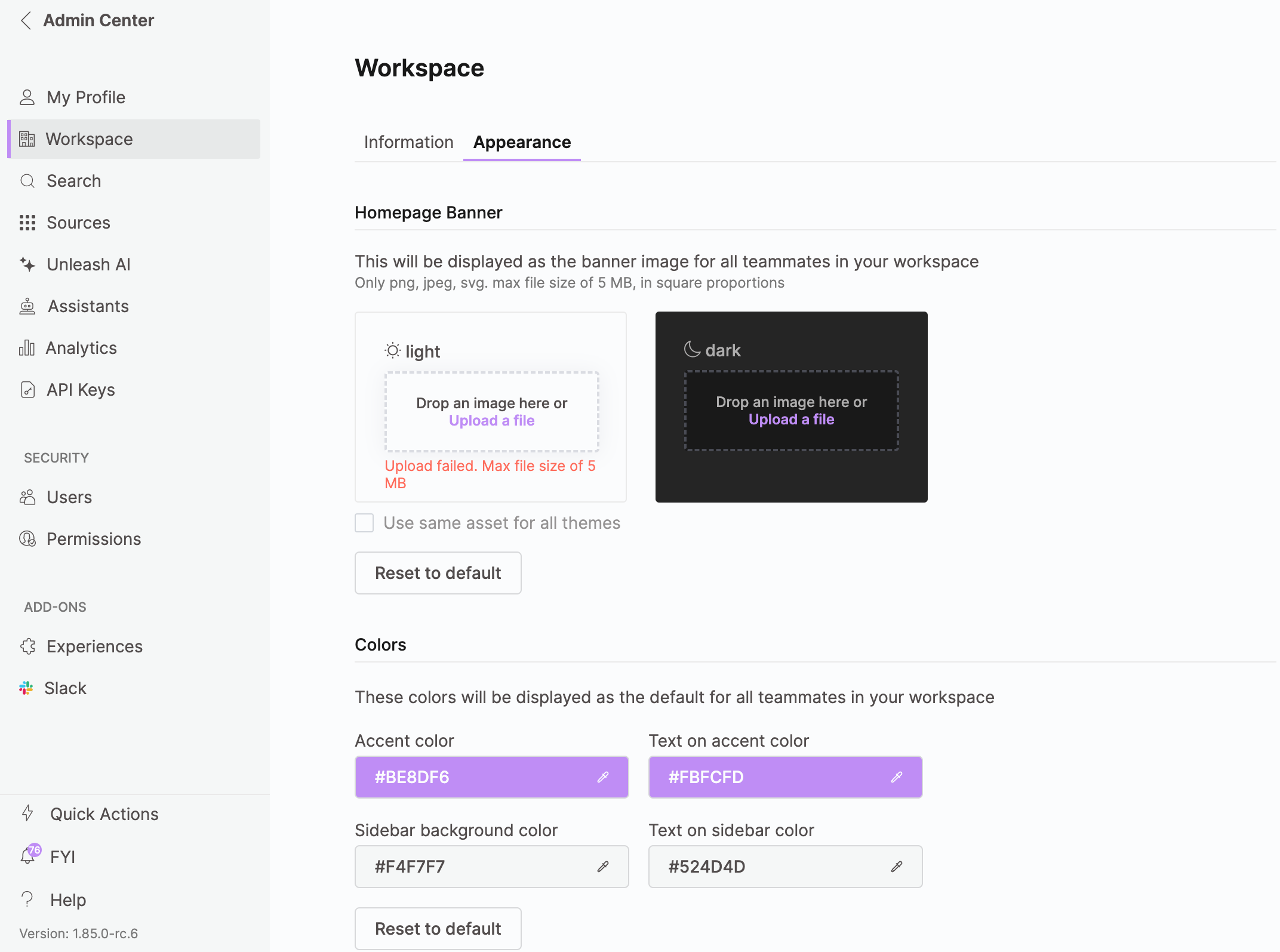
Customize your Unleash workspace to reflect your company’s brand and needs. Update the homepage banner and workspace colors to turn Unleash into a branded intranet portal.
To customize your company’s workspace:
Upload a homepage banner:
Click Upload a file for both light and dark themes and select an image.
Or, check Use same asset for all themes to apply the same image across both modes.
Supported file formats: JPG, PNG, SVG (max 5MB).
Change workspace colors:
Click the color drop icon to customize:
Accent color
Text on accent color
Sidebar background color
Text on sidebar color
Change workspace colors:
Click the color drop icon to customize:
Accent color
Text on accent color
Sidebar background color
Text on sidebar color
Reset to default:
Restore both the homepage banner and workspace colors by clicking Reset to Default anytime.
Admins have full control over which features are available in their Unleash workspace, tailored to their organization’s specific needs.
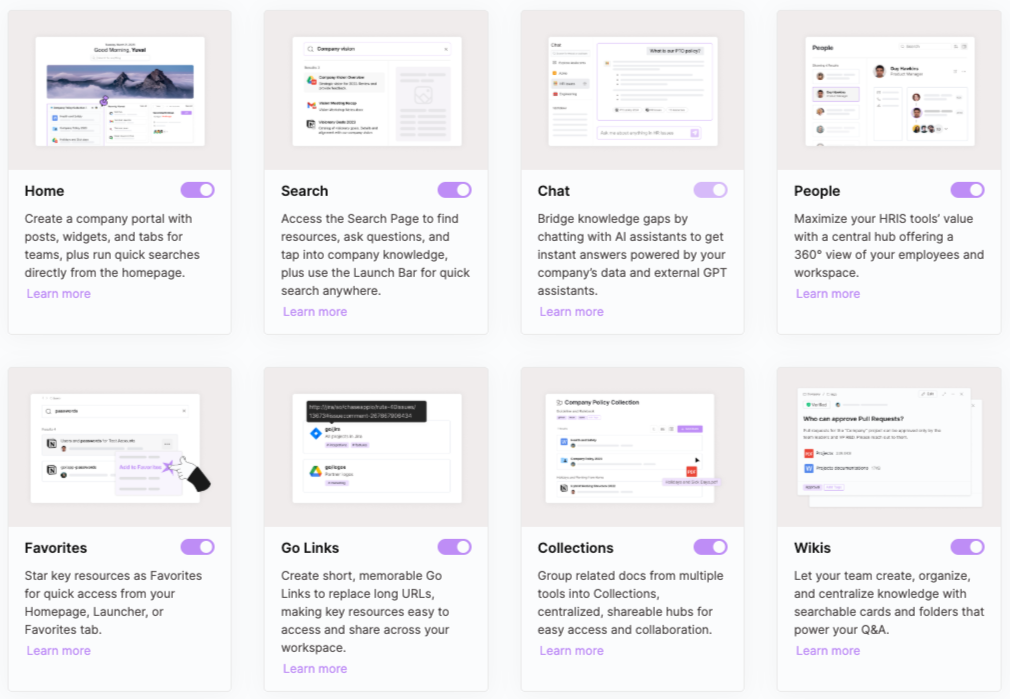
Enabling and Disabling Features
Admins can turn specific features on or off for their entire workspace.
When a feature is disabled, it is removed for all users, including admins, across all environments.
When a feature is disabled, its content is hidden from search results and Q&A. If a feature is re-enabled, all previously associated data will be fully restored.
By default, only Chat and Search are enabled, with the Chat page set as the default landing page in the Unleash app.
Available Feature Toggles
Admins can disable the following features:
Home - When enabled, this becomes the app’s main landing page instead of the Chat page. Enabling the Homepage automatically enables the Search page.
Search - If toggled off while the Homepage is enabled, both pages will be disabled. The Homepage depends on Search, but Search does not depend on the Homepage.
Chat - Appears in the feature list but cannot be toggled off, as it is a default feature.
Additional Considerations:
If Unleash data sources are configured and the feature is later disabled, all related links in the assistant will be removed.
If Collections are disabled, any Wikis or Go Links within them will also be hidden.